
You open Google Maps before a drive, expecting the familiar green and red — and the roads are just grey. Google Maps not showing live traffic is one of the most common Maps complaints, and the good news is that it is almost never a broken app. It is a setting, a layer, a zoom level, or a genuine absence of data on that road.
This guide works through the causes in the order you should check them, from the ten-second fixes to the cases where the honest answer is “there is no traffic data for this road at all.” It is the traffic counterpart of our popular-times troubleshooting guide — when the graph rather than the roads goes missing, see Google Maps popular times not showing.
Why is Google Maps not showing live traffic?
Work through this list top to bottom; the first items solve most cases:
- The traffic layer is off. This is the number-one cause. Traffic is an overlay you enable, not the default view. Tap Layers → Traffic and the colours return instantly.
- You are zoomed too far out. At state or country zoom, Google hides traffic colouring. Zoom to city level or closer.
- The road has no live data. Minor streets, rural roads and new roads may never colour. Grey here means “unmeasured”, not “broken”.
- Your connection dropped. Live colours need data. In a dead zone or with data saver restricting the app, the layer silently fails to load.
- The app is out of date or glitching. A stale version, a corrupted cache, or a half-loaded map can suppress the overlay until refreshed.
- You are looking at typical traffic or another layer. If the map is in satellite, transit or typical-traffic mode, live colours are replaced by that view.
Does Google Maps automatically show traffic?
Partly — and the distinction explains most confusion. Google Maps automatically uses traffic in navigation: directions, ETAs and rerouting always draw on live data whether or not you have touched the layer. What it does not do automatically, in most versions, is display the coloured overlay on the browsing map. That is a manual layer choice.
There are exceptions that make it feel automatic. During navigation, your route line shades with traffic colours without any setting. On Android, the driving mode and commute cards surface traffic for your regular routes on their own. And once you enable the layer, some versions remember it between sessions — which is why the feature can seem to switch itself off after an app update resets the preference.
Does Google Maps have live traffic updates?
Yes — live traffic updates are the core of the whole system. When the layer is on and data exists, colours refresh continuously as fresh speed reports arrive from phones on the road, and incident icons appear, update and expire as drivers report and confirm them. There is no refresh button because there is nothing to refresh: the feed is always the latest picture Google has.
The freshness does vary by road. A motorway carrying thousands of reporting phones re-grades within minutes of a change. A quiet B-road with a handful of phones updates slowly and may lag reality — which is worth knowing before you blame the app for a grey or stale colour on a minor road. The update mechanics are the same ones behind how Google Maps live traffic works on the data side.
Does Google Maps consider traffic time?
Yes. Every ETA Google quotes you — the one in directions, the one in the commute card, the one the voice assistant reads out — is computed with traffic time included. That is why the same 12 km journey is quoted as 18 minutes at noon and 41 minutes at 6:30 p.m.
It is also why “traffic time” adjustments can surprise you mid-journey: if conditions ahead worsen while you drive, the arrival estimate absorbs the new data and moves. If you are planning rather than driving, setting a future departure time swaps the live feed for historical predictions for that hour, which is the planning version of the same consideration.

turn off live traffic google maps
Turning off live traffic on Google Maps is the reverse of turning it on:
- On the map: Layers → tap Traffic again to deselect it. Roads return to plain grey.
- In navigation: The route shading cannot be removed mid-journey — it is built into the route display — but it disappears when navigation ends.
- On desktop: Layers → More → untick Traffic, or switch the layer view back to Live default map type.
Why would you turn it off? The layer adds visual noise when you are browsing for places rather than driving, drains a little extra data on slow connections, and can be genuinely distracting on a small screen full of red. The data keeps working for your ETAs either way.
The full fix routine, in order
If the quick list did not restore your colours, run this routine once, completely:
- Confirm the layer is on and zoom to street level over a major road in a city — a known data-rich place. If colours appear there, your settings are fine and the original road simply has no data.
- Toggle mobile data/Wi-Fi off and on; then force-close and reopen Maps.
- Clear the app cache (Android: Settings → Apps → Maps → Storage → Clear cache). Do not clear data unless you are happy re-signing-in and losing offline maps.
- Update Google Maps from the Play Store or App Store; several layer bugs in recent years were fixed in updates alone.
- Check for a system-level data restriction: battery saver modes and per-app data blocks can silently starve the layer.
- On desktop, hard-refresh the page, try an incognito window (extensions occasionally break map layers), and confirm you are not in Lite mode.
Google’s own Maps Help page on layers documents the layer controls for every platform if a menu has moved in your version.
Phone fine, desktop blank (and the reverse)
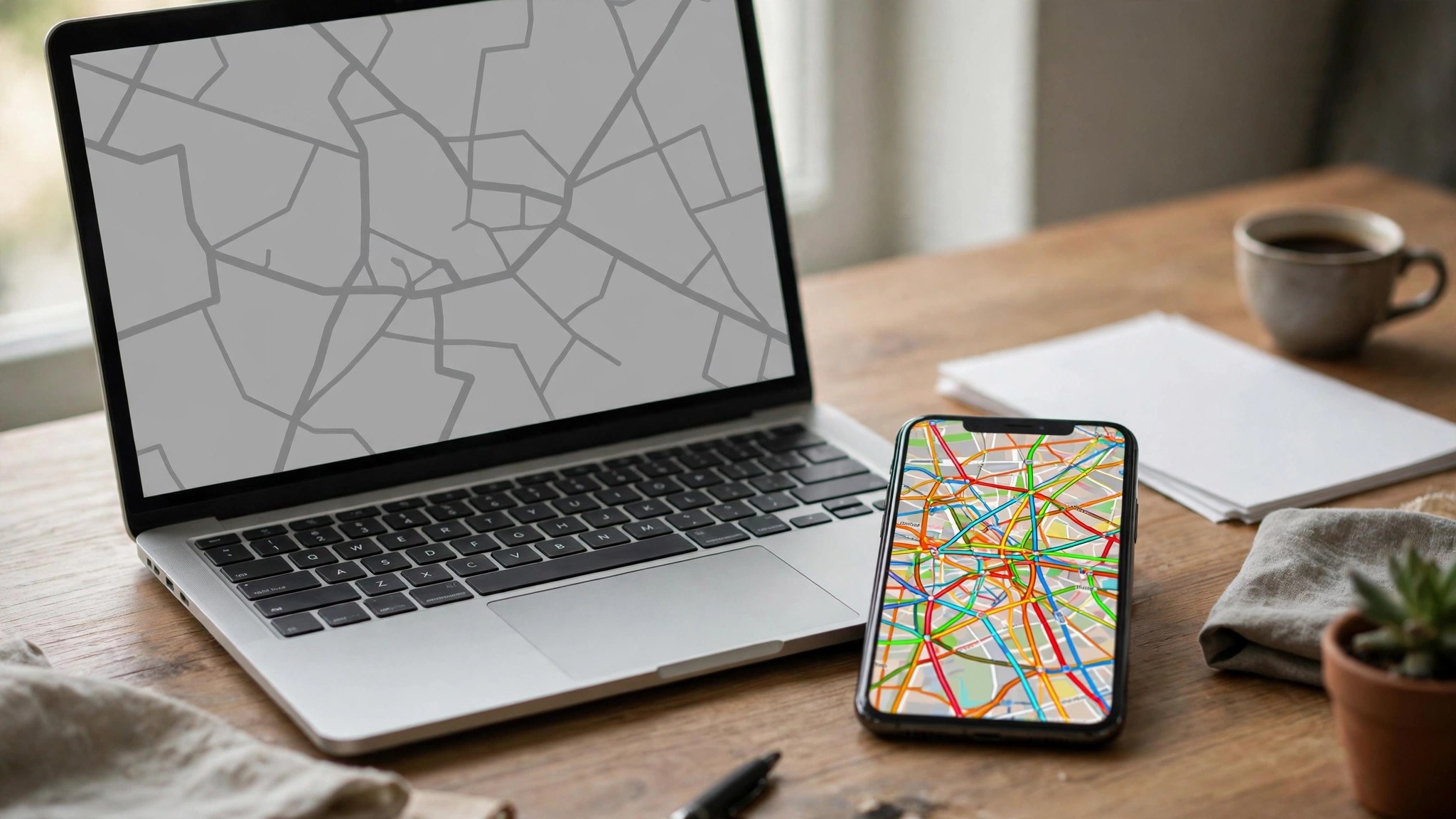
The two platforms fail differently, and knowing which you are on saves half the troubleshooting. On desktop, the usual culprits are the browser: an ad-blocker or privacy extension interfering with map tiles, an outdated browser that cannot render the newer map, or simply being zoomed out — the desktop map defaults to a wide view where traffic colouring is hidden by design.
On the phone, the culprits are the app and the system around it: battery-saver modes that throttle background data, a per-app data block, a cache that needs clearing, or location permissions set so restrictively that the app cannot centre or load local detail. The test that separates platform problems from data problems is always the same: zoom into a major road in a big city. If the colours appear there, your platform is healthy — a conclusion our main busy areas on Google Maps guide also relies on when separating feature problems from coverage problems.
Missing traffic on just one route
A subtler case confuses many drivers: traffic shows everywhere except on the one route they care about. Three explanations cover nearly all of these. The route uses a road too minor to be measured, so only its major-road portions colour. The route crosses a data boundary — coverage genuinely stops at some regional and national borders. Or the route is being shown in a planning view for a future time, in which case what you are seeing is the typical pattern for that hour, and stretches with thin history show nothing even though they colour up live.
The fix for the third case is simply to switch the departure back to “Leave now” and watch the live colours return. For the first two, there is no fix because nothing is broken: the map is showing you the edge of its own knowledge.
When the answer really is “no data here”
Sometimes every fix passes and a road still shows nothing. That is the system working honestly. Traffic colouring requires enough anonymised phone journeys on that segment, in that period, to grade it. New housing-estate streets, private roads, very rural lanes and roads in regions where Google services are little used can stay grey for years.
In those places, fall back on the tools that do not need live measurement: the typical-traffic patterns for main corridors (built from whatever history exists), local knowledge, and the old-fashioned radio traffic bulletin. And remember the grey applies to everyone equally — no other app has data Google lacks on a road nobody’s phone travels.
Frequently asked questions
Why does traffic show on my phone but not on the car’s display?
Android Auto and CarPlay views simplify the map; the layer choice from the phone does not always carry over, and some car displays only show traffic in navigation mode. Check the in-car display’s own layer settings.
Why did the colours disappear after an update?
Updates sometimes reset layer preferences. Re-enable Traffic once and it usually sticks again.
Is live traffic available in every country?
No. Coverage is broad across the Americas, Europe and Asia-Pacific cities, but some countries have limited or no traffic data, and minor roads are sparsely covered almost everywhere.
Does incognito mode affect traffic?
The browsing layer still works, but your own phone stops contributing location data in incognito — a privacy choice that does not stop you seeing the feed built by everyone else.
Why does the map show traffic on the highway but not my street?
Data thresholds. The highway carries thousands of reporting phones; your street may carry a dozen a day. The system colours what it can measure.
The traffic option is missing from my Layers menu entirely — why?
In a few regions and in some managed or work-profile devices, the traffic layer is unavailable by policy or by local regulation. A very old app version can also lack the current menu layout. Update first; if the option is still absent on a personal device in a covered country, the region itself is the likely limit.
Will traffic come back by itself if I wait?
If the cause was a temporary data outage or a road that has just gathered enough reports, yes. If the cause is a setting, no amount of waiting fixes it — the layer stays off until you switch it on.
The short version
When Google Maps is not showing live traffic, blame the layer before the app: switch Traffic on, zoom in, test on a major city road, and only then troubleshoot cache, updates and data settings. Most “missing traffic” is a toggle; the rest is an honest grey where nobody’s phone has measured the road. Either way, you now know which one you are looking at.
