
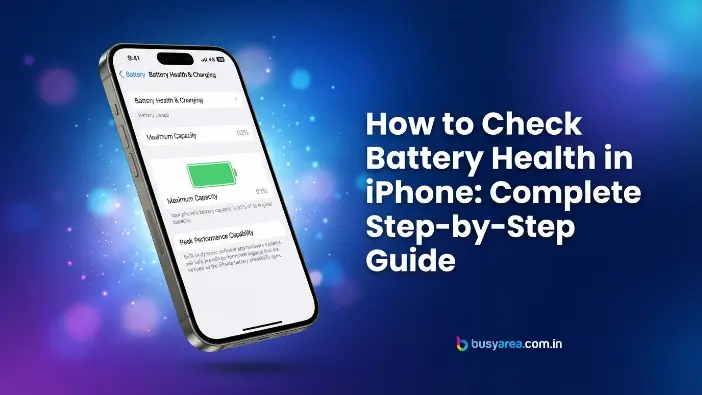
Welcome to Busy Area. Your iPhone’s battery naturally loses capacity over time, affecting battery life and performance. Knowing how to check battery health in iPhone helps you monitor its condition, identify battery wear, and decide when a replacement is needed. Apple includes a built-in Battery Health feature, making it easy to check your battery without third-party apps.
This feature displays important details such as battery health percentage, maximum capacity, peak performance capability, and, on supported models, battery cycle count. In this guide, you’ll learn how to check battery health in iPhone, understand what these metrics mean, and discover practical tips to extend your iPhone’s battery lifespan.
What Is iPhone Battery Health?
Before learning how to check battery health in iPhone, it’s important to understand Battery Health. It measures your iPhone’s battery capacity compared to when it was new, helping you track your iPhone battery condition and overall battery lifespan.
What Battery Health Means
Battery Health shows the remaining battery capacity as a percentage. A higher percentage means better performance, while a lower percentage indicates normal wear of the lithium-ion battery.
It also displays Peak Performance Capability, helping you evaluate your iPhone battery condition. Checking how to check battery health in iPhone lets you monitor battery wear and performance.
Why Battery Health Matters
As a lithium-ion battery ages, it holds less charge, reducing battery life and performance. Knowing how to check battery health in iPhone helps you detect battery wear early.
Regular checks improve your battery lifespan and help you decide when a battery replacement is needed. Monitoring your iPhone battery condition also helps maintain reliable performance.
How to Check Battery Health in iPhone
Checking how to check battery health in iPhone is simple using Apple’s built-in Battery Health feature. It shows your battery health percentage, maximum capacity, and other details to help you monitor your iPhone’s battery.
On iPhone 15 and Newer
Open Settings and tap Battery. Then select Battery Health to view your battery information.
You’ll see your battery health percentage, maximum capacity, Peak Performance Capability, and battery cycle count on supported models. These details help you assess your iPhone battery condition.
On iPhone 14 and Older
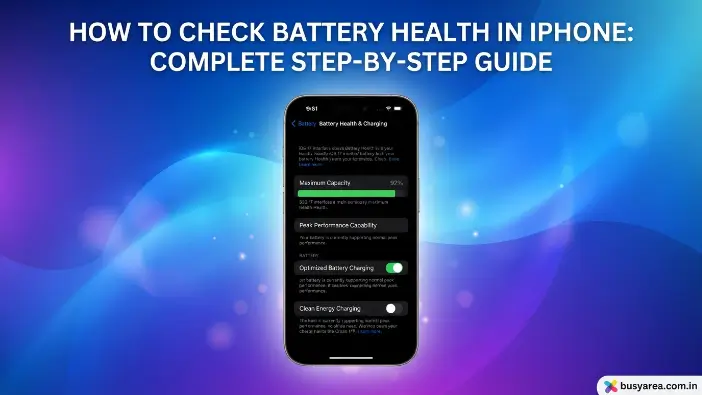
Go to Settings, tap Battery, and select Battery Health & Charging. This section displays your battery status.
Here you can check maximum capacity, Peak Performance Capability, and whether Optimized Battery Charging is enabled. Reviewing how to check battery health in iPhone regularly helps monitor battery wear.
What You’ll See
The Battery Health screen displays Maximum Capacity, Peak Performance Capability, and, on supported models, battery cycle count. These metrics indicate your battery’s current condition.
If your battery has significantly degraded, you may also see a Service message recommending a replacement. Monitoring how to check battery health in iPhone helps you identify battery issues early and maintain a longer battery lifespan.
Read Also: Is mayonnaise good for health
How to Understand Battery Health Percentage
Understanding your battery health percentage helps you evaluate your iPhone’s battery condition and overall performance. After learning how to check battery health in iPhone, you can use the percentage below to determine whether your battery is healthy, aging normally, or ready for replacement.
| Battery Health | Condition | Performance | Recommendation |
| 100% | Excellent | Like a new battery with full battery capacity. | No action needed. |
| 95–99% | Very Good | Excellent performance with minimal wear. | Continue normal use. |
| 90–94% | Good | Normal battery lifespan with slight capacity loss. | No replacement needed. |
| 85–89% | Fair | Shorter battery life between charges. | Monitor battery performance. |
| 80–84% | Aging | Noticeable battery drain during heavy use. | Consider battery replacement if needed. |
| Below 80% | Poor | Reduced performance and battery life. | Replace the battery for the best experience. |
Signs Your iPhone Battery Needs Replacement
Knowing how to check battery health in iPhone helps you recognize when a battery replacement is needed. If your iPhone battery condition has declined, you may notice the following warning signs.
Fast Battery Drain
If your iPhone loses charge much faster than before, the battery capacity may have significantly decreased. You may need to recharge your device several times a day.
Checking how to check battery health in iPhone confirms whether reduced battery life is caused by normal battery wear or another issue. A low battery health percentage often indicates it’s time to replace the battery.
Unexpected Shutdowns
An aging lithium-ion battery may not supply enough power during demanding tasks. This can cause your iPhone to shut down unexpectedly, even when the battery still shows a charge.
Regularly checking how to check battery health in iPhone helps identify this problem early. Replacing a worn battery usually resolves unexpected shutdowns.
Slow Performance
A degraded battery can trigger performance management, causing your iPhone to run slower. Apps may take longer to open, and overall responsiveness may decrease.
Monitoring how to check battery health in iPhone helps determine whether battery wear is affecting performance. A healthy battery lifespan supports smooth and reliable operation.
Service Recommended Message
If the Battery Health screen displays a Service message, your battery has likely degraded beyond normal levels. This indicates the battery can no longer deliver optimal performance.
After checking how to check battery health in iPhone, consider replacing the battery if this message appears. A new battery restores your iPhone’s battery condition and improves battery life and performance.
How to Improve iPhone Battery Health
Learning how to check battery health in iPhone is only the first step. Healthy charging habits and proper settings can reduce battery degradation, preserve battery capacity, and extend your iPhone’s battery lifespan.
Enable Optimized Battery Charging
Enable Optimized Battery Charging by going to Settings > Battery > Battery Health & Charging. This feature learns your daily charging routine and pauses charging at 80% until you’re likely to use your iPhone, reducing the time the battery stays fully charged.
Keeping a battery at 100% for long periods increases chemical aging. Enabling this feature minimizes unnecessary charging stress, helping preserve battery capacity and improve your iPhone battery condition over time. Check how to check battery health in iPhone regularly to monitor its effectiveness.
Avoid Extreme Temperatures
Heat is one of the biggest causes of battery wear. Apple recommends using your iPhone in temperatures between 0°C and 35°C (32°F–95°F). Exposure to excessive heat can permanently reduce battery capacity.
Avoid leaving your iPhone in direct sunlight, inside a parked car, or near heat sources. In cold temperatures, battery life may temporarily decrease, but it usually returns to normal once the device warms up. Protecting the lithium-ion battery helps extend its lifespan.
Keep iOS Updated
Apple regularly releases iOS updates that improve battery efficiency, fix software bugs, and optimize power management. Running an outdated version may increase battery usage or cause unnecessary background activity.
Go to Settings > General > Software Update and install the latest version whenever available. Keeping iOS updated, along with how to check battery health in iPhone, helps maintain a healthy iPhone battery condition.
Avoid Deep Discharges
Frequently letting your battery drain to 0% puts extra stress on the lithium-ion battery. Although occasional full discharges won’t cause major damage, repeating this habit can speed up battery wear.
For daily use, try to keep your battery between 20% and 80% whenever possible. This charging range reduces battery stress and helps preserve battery capacity for a longer period.
Use Certified Chargers
Always use Apple or MFi-certified chargers and cables. Certified accessories meet Apple’s safety standards and provide stable power during charging.
Cheap or counterfeit chargers may overheat, charge inconsistently, or damage your battery over time. Using certified accessories protects your battery condition and ensures safe, efficient charging.
Reduce Background Battery Drain
Apps running in the background continue using power even when you’re not actively using them. Disable Background App Refresh for unnecessary apps, lower screen brightness, and turn off Bluetooth, GPS, or Personal Hotspot when they’re not needed.
You can also enable Low Power Mode to reduce background activity and extend battery life. Lower power consumption reduces battery cycles, helping improve your battery lifespan while keeping your iPhone running efficiently.
Common Battery Health Myths
Many battery myths are outdated. Knowing the facts and how to check battery health in iPhone helps protect your battery lifespan and maintain a healthy battery capacity.
- Overnight charging is safe because iPhones automatically stop charging and use Optimized Battery Charging to reduce battery wear.
- Charging between 20% and 80% is better for long-term battery lifespan than keeping the battery at 100% constantly.
- Apple’s fast charging is safe when using Apple or MFi-certified chargers and does not significantly reduce battery capacity.
- Avoid completely draining your battery regularly, as frequent deep discharges can speed up lithium-ion battery degradation.
Common Problems and Solutions
Even after learning how to check battery health in iPhone, you may encounter battery-related issues. The following problems and solutions can help restore your iPhone battery condition and improve your battery lifespan.
Battery Health Option Missing
If the Battery Health option doesn’t appear, your iPhone may be running an outdated iOS version or an unsupported model. In some cases, software glitches can also hide the feature.
Solution: Update your iPhone to the latest iOS, restart the device, and open Settings > Battery again. If your iPhone still doesn’t support Battery Health, use Apple’s diagnostics or visit an Apple Authorized Service Provider.
Battery Health Not Updating
The battery health percentage doesn’t update every day because iOS measures battery wear over time. A stable percentage is normal, even after weeks of use.
Solution: Continue using your iPhone normally, complete several charging cycles, and keep iOS updated. Check Battery Health again after a few weeks instead of expecting daily changes.
Battery Drains Too Fast
Rapid battery drain is often caused by high screen brightness, background apps, poor network coverage, or an aging lithium-ion battery. It doesn’t always mean the battery is faulty.
Solution: Enable Low Power Mode, reduce screen brightness, disable unnecessary Background App Refresh, and check which apps use the most battery in Settings > Battery. If battery capacity is below 80%, consider replacing the battery.
Battery Health Stuck
If the battery health percentage remains the same for months, it usually means your battery hasn’t degraded enough for iOS to record a change. This is normal for lightly used devices.
Solution: Restart your iPhone, install the latest iOS update, and continue using the device normally. Regularly checking how to check battery health in iPhone helps you monitor your battery lifespan and identify any future changes.
Frequently Asked Questions
How do I check battery health on my iPhone?
Open Settings > Battery > Battery Health or Battery Health & Charging to view battery health percentage and maximum capacity.
What is a good battery health percentage?
A battery health percentage above 90% is considered good and provides reliable performance and battery life for most users.
When should I replace my iPhone battery?
Replace your battery when battery capacity falls below 80% or if you experience poor battery life and unexpected shutdowns.
Does charging overnight damage battery health?
No. iPhones use Optimized Battery Charging to reduce battery wear and protect your lithium-ion battery during overnight charging.
Can battery health return to 100%?
No. Once battery capacity decreases, it cannot recover. Only replacing the battery restores Battery Health to 100%.
Conclusion
Understanding how to check battery health in iPhone helps you monitor your device’s performance and identify battery wear before it becomes a major issue. Regularly checking your battery health percentage, battery capacity, and iPhone battery condition allows you to make informed decisions about maintenance and replacement.
Follow healthy charging habits, keep iOS updated, and use certified accessories to extend your battery lifespan. If your battery drops below 80% or shows a Service message, replacing it will restore reliable performance and improve your overall iPhone experience.
