

Understanding how to check laptop battery health is essential if you rely on your laptop for work, study, or daily tasks. Over time, every laptop battery naturally degrades due to repeated charging cycles, heat exposure, and regular usage patterns. This means that even if your laptop feels fine today, its ability to hold a charge may already be reducing without you noticing it. By learning how battery health works, you can identify problems early and avoid unexpected shutdowns or performance issues.
Battery health is more than just a simple percentage; it reflects the real condition of your battery compared to its original factory capacity. When you check tools like Battery Report in Windows 10/11, you can see detailed insights such as battery wear level and cycle count, which help you understand how much the battery has aged. These metrics are important because they show whether your battery is still reliable or approaching the end of its lifespan. Knowing this information allows you to take timely action, such as optimizing usage habits or planning for a replacement before serious problems occur.
What Is Laptop Battery Health and Why Does It Matter
Understanding how to check laptop battery health is important because it helps you evaluate the real condition of your laptop’s power source instead of relying only on how long it currently lasts on a single charge. A laptop battery gradually loses its ability to store energy due to chemical aging, heat exposure, and repeated charging cycles. This means that even if your device still works normally, its internal capacity may already be reduced compared to when it was new. Monitoring battery health ensures you can detect early signs of decline and avoid sudden performance issues or unexpected shutdowns. Checking battery health also helps you make smarter decisions about usage habits, maintenance, and replacement timing. When you use tools like battery wear level indicators or system diagnostics, you can better understand how efficiently your battery is performing.
Battery health vs battery cycle count
Battery health refers to the overall capacity condition of a laptop battery compared to its original factory state, while battery cycle count measures how many full charge and discharge cycles the battery has gone through. When learning how to check laptop battery health, it is important to understand that these two metrics are closely related but not identical. A battery may still show a moderate cycle count but already have reduced capacity due to heat or aging factors.
Over time, each cycle contributes slightly to battery wear, but environmental conditions can accelerate the process. Using cycle count tracking tools helps users understand how often their battery has been used, while battery health percentage shows the actual performance drop. Together, they give a complete picture of battery condition and help determine whether the battery is still reliable or nearing the end of its usable life.
What does “wear level” mean
Wear level refers to the amount of degradation a battery has experienced compared to its original capacity. When you focus on how to check laptop battery health, wear level becomes one of the most important indicators because it directly shows how much usable energy has been lost over time. For example, a 20% wear level means the battery can now only hold 80% of its original charge capacity.
This metric is often displayed in battery diagnostic reports and helps users quickly assess whether performance issues are caused by normal aging or deeper hardware problems. A higher wear level means the battery will drain faster and may require more frequent charging, making it less reliable for long-term use. Understanding this value helps users decide whether optimization is enough or a replacement is necessary.
Signs of a weak laptop battery
A weak laptop battery often shows noticeable symptoms that affect daily usage. When exploring how to check laptop battery health, these signs help confirm whether the battery is still in good condition or starting to fail. Common indicators include rapid battery drain, unexpected shutdowns, and difficulty reaching full charge even after long charging periods.
In many cases, users may also notice performance inconsistencies such as sudden drops in battery percentage or overheating during charging. These issues are often linked to increased power consumption inefficiency, which reduces overall device reliability. Recognizing these warning signs early allows users to take preventive steps, such as adjusting power settings or planning for a battery replacement before complete failure occurs.
Read also: How to check laptop battery health
How to Check Laptop Battery Health on Windows
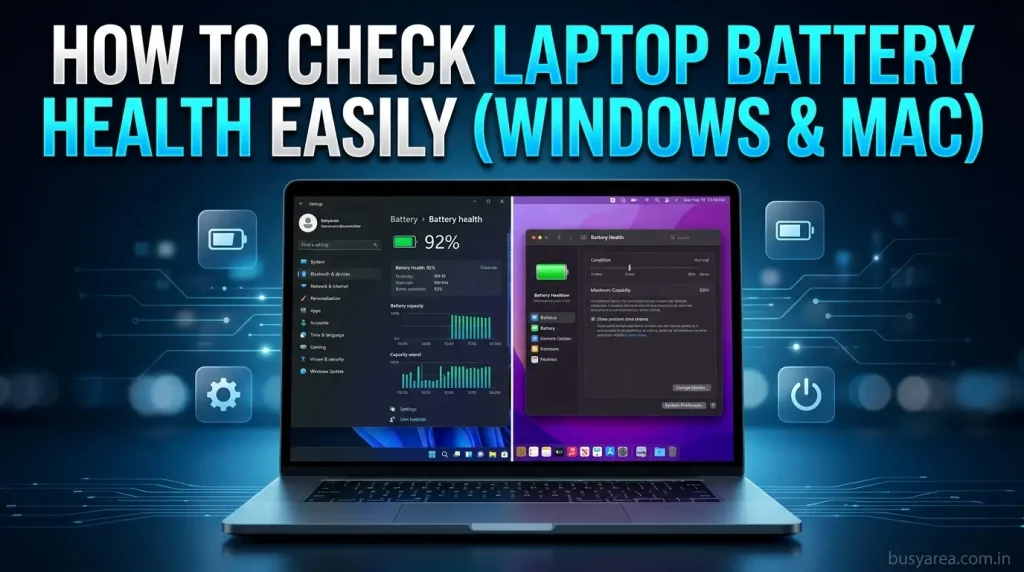
Learning how to check laptop battery health on Windows is one of the most effective ways to understand your device’s real battery condition without installing extra software. Windows provides built-in diagnostic tools that allow users to generate detailed battery reports, showing everything from design capacity to current performance trends. These tools are especially useful because they give accurate insights into battery degradation over time, helping users make informed decisions about usage and replacement. By using Windows-native features, you can also analyze important battery performance statistics that reveal how efficiently your laptop is holding charge. This method is preferred by advanced users and technicians because it provides raw data instead of simplified summaries.
Using Windows Battery Report (CMD Method)
One of the most reliable ways to understand how to check laptop battery health is by using the Windows Command Prompt to generate a built-in battery report. This method does not require third-party tools and provides a detailed HTML file that contains all essential battery information. It is widely used because it offers deep insights into battery usage history and capacity trends.
The battery diagnostic report generated through CMD includes important metrics such as design capacity, full charge capacity, and recent usage patterns. These details help users understand how much the battery has degraded over time and whether it is still functioning efficiently. This makes it a powerful method for both beginners and advanced users who want accurate battery analysis.
Step-by-step guide to generate a battery report
To effectively apply how to check laptop battery health, start by opening Command Prompt on your Windows laptop. Press Windows + R, type “cmd,” and run it as administrator. Then enter the command powercfg /batteryreport, which will instantly generate a detailed battery report saved as an HTML file on your system.
Once the report is generated, navigate to the file location shown in the Command Prompt and open it in a web browser. The battery usage history report provides a clear breakdown of how your battery has performed over time. This step-by-step process is simple yet highly effective for identifying battery degradation patterns.
Understanding battery capacity details
When analyzing how to check laptop battery health, understanding battery capacity details is crucial. The report shows two key values: design capacity and full charge capacity. Design capacity represents the original battery strength when it was new, while full charge capacity shows the current maximum energy it can hold.
By comparing these values, you can evaluate the level of battery degradation using the capacity loss percentage. A significant gap between the two indicates aging or reduced efficiency. This information helps users determine whether the battery is still reliable or starting to lose performance consistency.
Checking battery wear level in Windows 10/11
Another important step in checking laptop battery health is calculating the wear level in Windows 10/11. Wear level shows how much of the battery’s original capacity has been lost over time. This is usually calculated using the difference between design capacity and current full charge capacity.
The battery wear percentage indicator helps users quickly understand battery condition without needing advanced technical knowledge. If the wear level is high, it means the battery will drain faster and may require replacement soon. Monitoring this regularly ensures better performance management and prevents unexpected shutdowns during important tasks.
How to Check Battery Health on Linux
Learning how to check laptop battery health on Linux is important for users who rely on open-source systems and want accurate insights into their device’s power performance. Linux provides built-in terminal commands and system utilities that allow users to monitor battery condition, capacity, and energy usage in detail. These tools help identify degradation early by analyzing key metrics like cycle count, charge levels, and overall efficiency. Using these methods ensures better battery management and a longer laptop lifespan.
Check Battery Health
- Use the upower command to view battery status and detailed energy information instantly in the terminal.
- Check battery capacity metrics to understand current vs original energy storage levels on Linux systems.
- Run the acpi command for quick battery percentage, charging status, and temperature monitoring details.
- Install GNOME Power Statistics to visually analyze battery usage trends and performance over time.
- Use the TLP tool to optimize power consumption and improve overall battery efficiency on Linux laptops.
- Monitor cycle count data to estimate battery aging and long-term usage patterns accurately.
- Check /sys/class/power_supply/ directory for raw battery health and hardware-level information access.
- Use the powertop utility to identify power-hungry processes affecting battery drain and performance issues.
- Compare full charge capacity with design capacity for precise battery health evaluation on Linux systems.
- Regularly track battery statistics to maintain optimal performance and prevent unexpected shutdown issues.
Best Third-Party Tools for Battery Health Check
Understanding how to check laptop battery health becomes significantly more accurate when you go beyond built-in system tools and use specialized third-party applications. These tools are designed to provide deeper diagnostic data, such as real-time capacity changes, internal battery wear, temperature fluctuations, and long-term degradation patterns. While Windows or macOS gives basic summaries, third-party tools reveal what is happening inside the battery at a more technical level. Most of these applications also track battery health analytics, which helps users understand how usage habits, charging frequency, and heat exposure impact long-term battery performance. This is especially useful for users experiencing fast battery drain or inconsistent charging behavior, as it allows them to identify whether the issue is software-related or due to actual battery degradation.
HWMonitor (Windows)
HWMonitor is one of the most widely used tools for users learning how to check laptop battery health on Windows because it provides a detailed hardware-level breakdown of battery performance. It displays essential metrics such as voltage, temperature, power draw, and wear level in real time. This makes it especially useful for identifying sudden changes in battery behavior that may not appear in standard Windows reports.
Beyond basic monitoring, HWMonitor also helps track hardware power efficiency trends, showing how different system components affect battery consumption. For example, users can observe how CPU or GPU load impacts battery drain. This level of insight is valuable for diagnosing overheating issues or abnormal power usage that could shorten battery lifespan over time.
BatteryInfoView
BatteryInfoView is a lightweight yet powerful utility that gives a complete snapshot for users researching how to check laptop battery health. It consolidates all key battery information into a single interface, including design capacity, full charge capacity, cycle count, and current charge level. This makes it extremely convenient for quick health checks without navigating multiple system menus.
It also highlights battery degradation behavior patterns, which help users understand how quickly their battery is aging compared to normal expectations. Since it does not require installation and runs instantly, it is commonly used for fast diagnostics. This tool is especially helpful when comparing multiple laptops or verifying battery condition before purchasing a used device.
coconutBattery (Mac)
coconutBattery is a trusted macOS tool for users who want a deeper understanding of how to check laptop battery health on Apple devices. It provides a detailed breakdown of battery condition, including current maximum capacity, original factory capacity, cycle count, and battery age. The interface is simple, but the data it provides is highly detailed and accurate.
It also tracks Apple battery lifecycle performance, which helps users understand how their charging habits affect long-term health. For example, keeping the battery frequently at high heat or full charge can accelerate degradation. This tool is widely used because it offers more transparency than macOS built-in settings, especially for users who want long-term battery optimization insights.
What these tools reveal
When learning how to check laptop battery health, third-party tools provide insights that go far beyond basic percentage readings. They reveal how much the battery has physically degraded, how efficiently it charges and discharges, and whether performance issues are caused by aging or external factors like overheating or background processes.
They also expose real-time battery performance behavior, such as sudden voltage drops, inconsistent charging rates, or abnormal heat levels. These insights are critical because they help users distinguish between normal battery aging and serious hardware problems. With this information, users can make informed decisions about optimizing usage, adjusting charging habits, or replacing the battery before it fails.
How to Interpret Battery Health Results
Understanding how to check laptop battery health is only useful if you can correctly interpret what the results actually mean. Battery reports from Windows, macOS, or third-party tools usually include technical values like percentages, capacity figures, and cycle counts. At first glance, these numbers may seem confusing, but they directly reflect how much usable energy your battery can still store and how efficiently it performs compared to its original condition. These readings are important because they help you move beyond guesswork. Instead of relying on how long your laptop “feels” like it lasts, you can evaluate battery performance degradation trends based on real data.
What is a good battery health percentage?
A good battery health percentage typically ranges between 90% and 100%, which means your battery is still very close to its original factory capacity. At this level, the battery delivers stable performance, consistent backup time, and efficient charging behavior. For users learning how to check laptop battery health, this range represents a healthy and fully reliable battery condition.
Even when battery health is between 80% and 90%, the battery is still considered usable for normal workloads such as browsing, office work, and media playback. However, you may start noticing slight reductions in battery runtime depending on usage intensity. Monitoring battery efficiency stability at this stage is important because it helps you track whether the decline is gradual or accelerating due to heat, heavy usage, or charging habits.
When battery health is below 80%
Once battery health drops below 80%, the degradation becomes more noticeable in everyday usage. This is a critical threshold when learning how to check laptop battery health, because it usually marks the point where performance changes become obvious. You may experience shorter battery life, more frequent charging, and inconsistent power delivery during intensive tasks.
At this stage, the battery wear progression rate tends to increase, meaning the battery loses capacity faster than before. While the laptop still functions normally, it becomes less dependable for long work sessions or travel use. Users often notice that battery percentage drops faster under load or that the device struggles to maintain stable power during multitasking or high-performance applications.
Understanding design vs full charge capacity
A key part of how to check laptop battery health is understanding the difference between design capacity and full charge capacity. Design capacity is the original amount of energy the battery was built to store when it was brand new. In contrast, full charge capacity represents the current maximum energy the battery can hold after years of usage and charging cycles.
The gap between these two values reveals the actual level of battery degradation. A small difference means the battery is still in good condition, while a large difference indicates significant aging. This comparison is one of the most accurate ways to measure true battery capacity loss, because it reflects real physical wear rather than estimated percentages shown in the operating system.
When to replace your battery
Knowing when to replace your battery is an essential part of understanding how to check laptop battery health effectively. In most cases, replacement becomes necessary when battery health falls below 70%, as performance limitations start to interfere with daily usage. At this stage, the battery may no longer provide stable backup time and can shut down unexpectedly even when the charge remains.
As the battery continues to degrade, advanced battery failure symptoms such as overheating, sudden percentage jumps, and unstable charging become more frequent. These issues indicate that the battery cells are no longer functioning reliably. Replacing the battery at this point not only restores performance but also improves device stability and prevents potential data loss from unexpected shutdowns.
Common Laptop Battery Problems and Fixes
When learning how to check laptop battery health, it is equally important to understand the common problems that occur when a battery starts degrading. Many users assume that sudden performance issues are caused by software, but in reality, they are often linked to underlying battery deterioration. Recognizing these problems early helps you take corrective action before the battery completely fails and affects overall laptop usability. Most battery-related issues are connected to battery performance instability, which develops gradually over time due to heat, charging habits, and aging cells. By identifying symptoms such as charging failure, rapid power loss, or unexpected shutdowns, you can better diagnose whether the issue is software-related or a sign that the battery needs maintenance or replacement.
Battery not charging issue.
A battery not charging is one of the most common problems users face when applying how to check laptop battery health in real-world scenarios. This issue can occur due to a faulty charger, damaged charging port, outdated drivers, or internal battery degradation. In some cases, the laptop may show that it is plugged in but still not increasing in percentage.
From a diagnostic perspective, a charging circuit malfunction or battery wear can also prevent proper charging. Restarting the system, updating battery drivers, or checking hardware connections can sometimes resolve the issue. However, if the problem persists, it may indicate a deeper battery failure that requires replacement or professional inspection.
Fast battery drain
Fast battery drain is another frequent issue that users notice while learning how to check laptop battery health. This happens when the battery loses its ability to hold a charge efficiently, causing it to deplete much faster than expected. Background applications, high screen brightness, and system processes can also contribute to this problem.
In many cases, energy consumption imbalance is the root cause, where the laptop uses more power than the battery can efficiently supply. Even after closing unnecessary apps, a degraded battery may still drain quickly due to reduced capacity. Monitoring system usage and checking battery reports can help determine whether the issue is hardware-related or caused by software inefficiencies.
Laptop shuts down unexpectedly.
Unexpected shutdowns are a serious warning sign when evaluating how to check laptop battery health. This problem usually occurs when the battery can no longer deliver stable power, causing the laptop to turn off even when the battery percentage is not fully depleted. It often becomes more frequent as the battery ages.
This behavior is commonly linked to voltage instability issues inside the battery cells. When the battery cannot maintain a consistent energy output, the system interprets it as empty and shuts down to protect hardware components. If this issue continues, it strongly indicates that the battery is nearing the end of its lifespan and should be replaced to prevent data loss and further interruptions.
Tips to Improve Laptop Battery Health
Improving how to check laptop battery health is not only about monitoring battery condition but also about applying the right habits to extend its overall lifespan. A laptop battery naturally degrades over time, but proper usage, charging behavior, and system optimization can significantly slow this process. By following smart maintenance practices, users can maintain better performance, reduce wear level, and avoid early battery replacement while ensuring stable daily productivity and longer-lasting device efficiency.
Tips to Improve Laptop Battery
- Keep the battery between 20% and 80% to reduce long-term stress and slow chemical degradation inside lithium-ion cells.
- Avoid full 0% discharge cycles because deep discharges accelerate battery wear level and shorten overall lifespan significantly over time.
- Do not overcharge the laptop for long hours since constant 100% charging increases heat and reduces battery efficiency gradually.
- Reduce screen brightness to lower power consumption and improve energy efficiency optimization during everyday laptop usage sessions.
- Close background apps to prevent unnecessary CPU usage that drains battery faster and reduces overall runtime performance.
- Enable battery saver mode to automatically optimize system settings and extend usable battery life during critical tasks.
- Keep the laptop cool because overheating damages internal battery cells and accelerates long-term capacity loss issues.
- Use the original charger to ensure a stable voltage supply and prevent inconsistent charging behavior or hardware damage risks.
- Update system drivers regularly to improve power management efficiency and fix hidden battery-related software bugs.
- Disable unused hardware features like Bluetooth or Wi-Fi when not needed to conserve energy and extend battery backup.
Frequently Asked Questions
Can a laptop battery’s health be restored to 100%?
No, once a lithium-ion battery loses capacity through normal aging, it cannot be restored to its original condition. When researching how to check laptop battery health, many users mistakenly believe calibration or software tools can reverse physical battery wear. In reality, these methods only improve measurement accuracy.
Do third-party battery health tools provide accurate results?
Most reputable third-party tools provide accurate information because they read data directly from the battery’s internal management system. Users exploring how to check laptop battery health often use these tools to gain more detailed insights than built-in operating system reports can provide.
How often should I check my laptop battery health?
You should check your battery health every 2–3 months to track gradual changes over time. Regular monitoring helps you identify early signs of battery performance degradation before it becomes a serious issue affecting daily usage.
What is a normal battery cycle count?
A normal battery cycle count typically ranges between 300 and 1000 cycles, depending on the laptop model and battery quality. When evaluating how to check laptop battery health, cycle count helps you understand how intensively the battery has been used.
Can battery health be improved?
Battery health cannot be permanently improved once it has degraded because it is a physical limitation of lithium-ion cells. However, you can slow further.
Conclusion
Understanding how to check laptop battery health is essential for maintaining reliable laptop performance and avoiding unexpected shutdowns during important tasks. By regularly monitoring battery reports on Windows, macOS, or Linux, you can clearly see how much capacity your battery has lost over time and whether it is still operating within a healthy range. This helps you move from guesswork to data-driven decisions about your device.
When you track battery wear level and compare design capacity with full charge capacity, you gain a realistic view of your battery’s true condition. This makes it easier to identify early warning signs, adjust usage habits, and apply proper charging practices. In the long run, consistent monitoring and good maintenance habits not only extend battery lifespan but also ensure your laptop remains efficient, stable, and dependable for everyday use.
